Windows Firewall Configuration
Many of the programming tools used in FRC need network access for various reasons. Depending on the exact configuration, the Windows Firewall may potentially interfere with this access for one or more of these programs.
Disabling Windows Firewall
Important
Disabling your firewall requires administrator privileges to the PC. Additionally note that disabling the firewall is not recommended for computers that connect to the internet.
The easiest solution is to disable the Windows Firewall. Teams should beware that this does make the PC potentially more vulnerable to malware attacks if connecting to the internet.
Click Start -> Settings
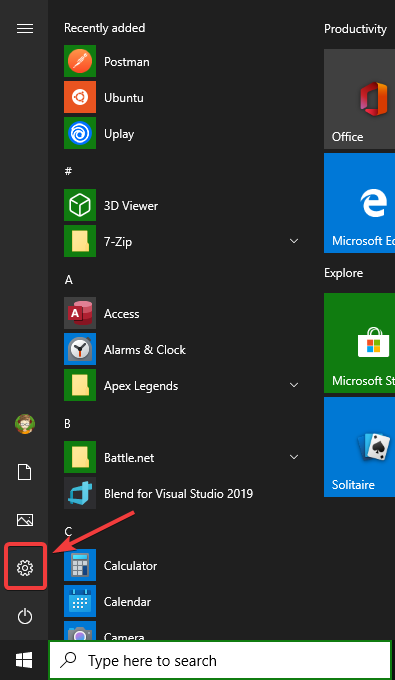
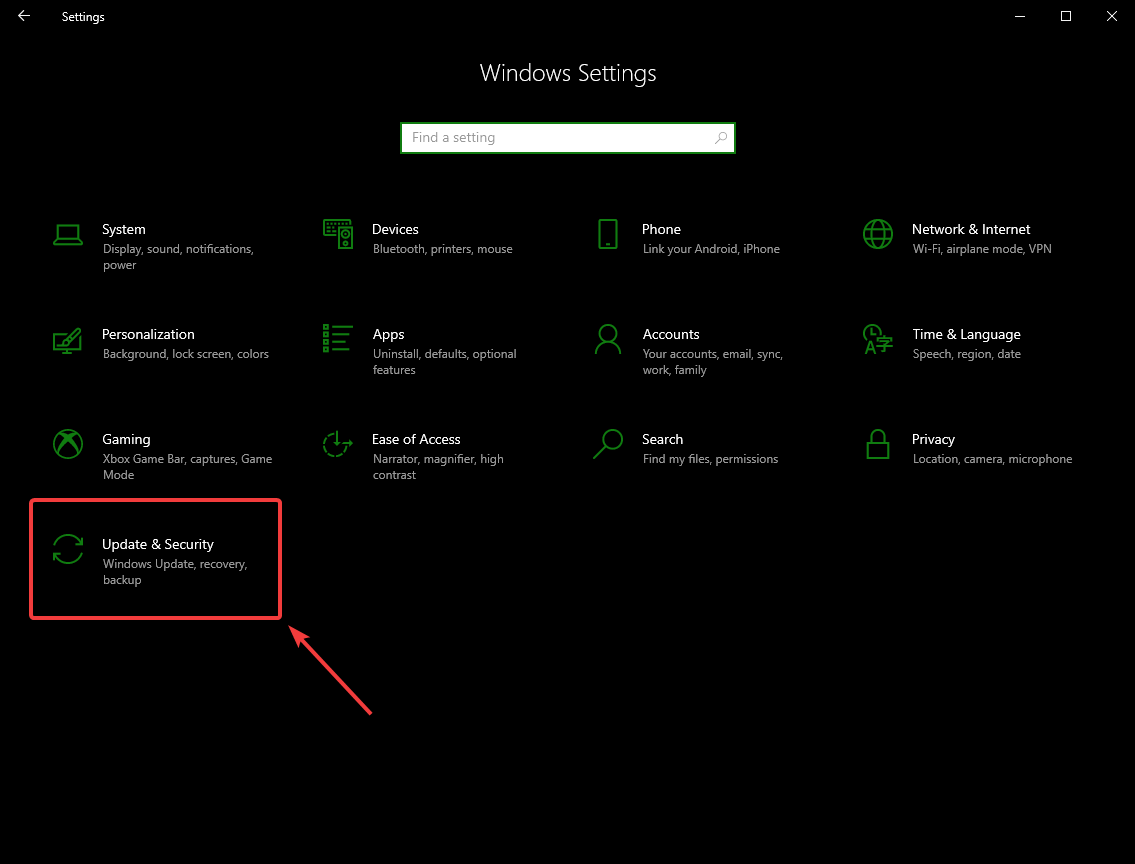
Click Update & Security
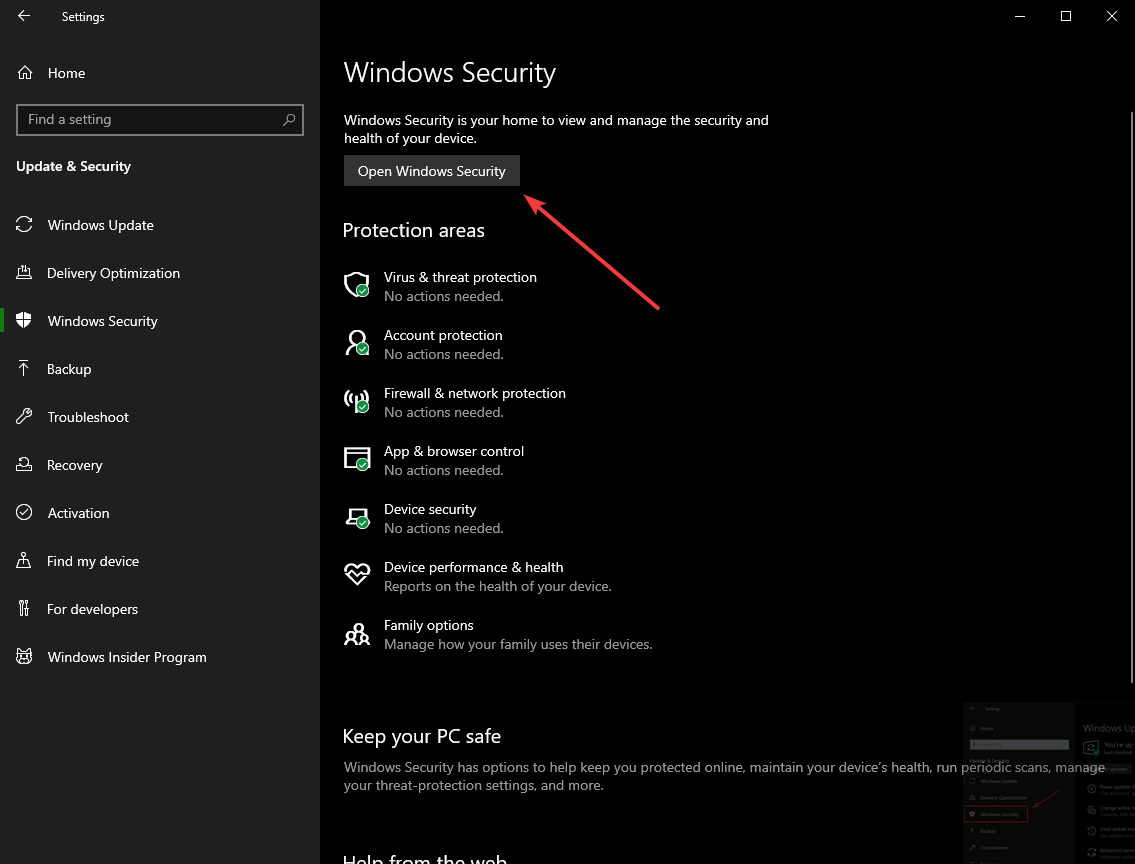
In the left pane, select Open Windows Security
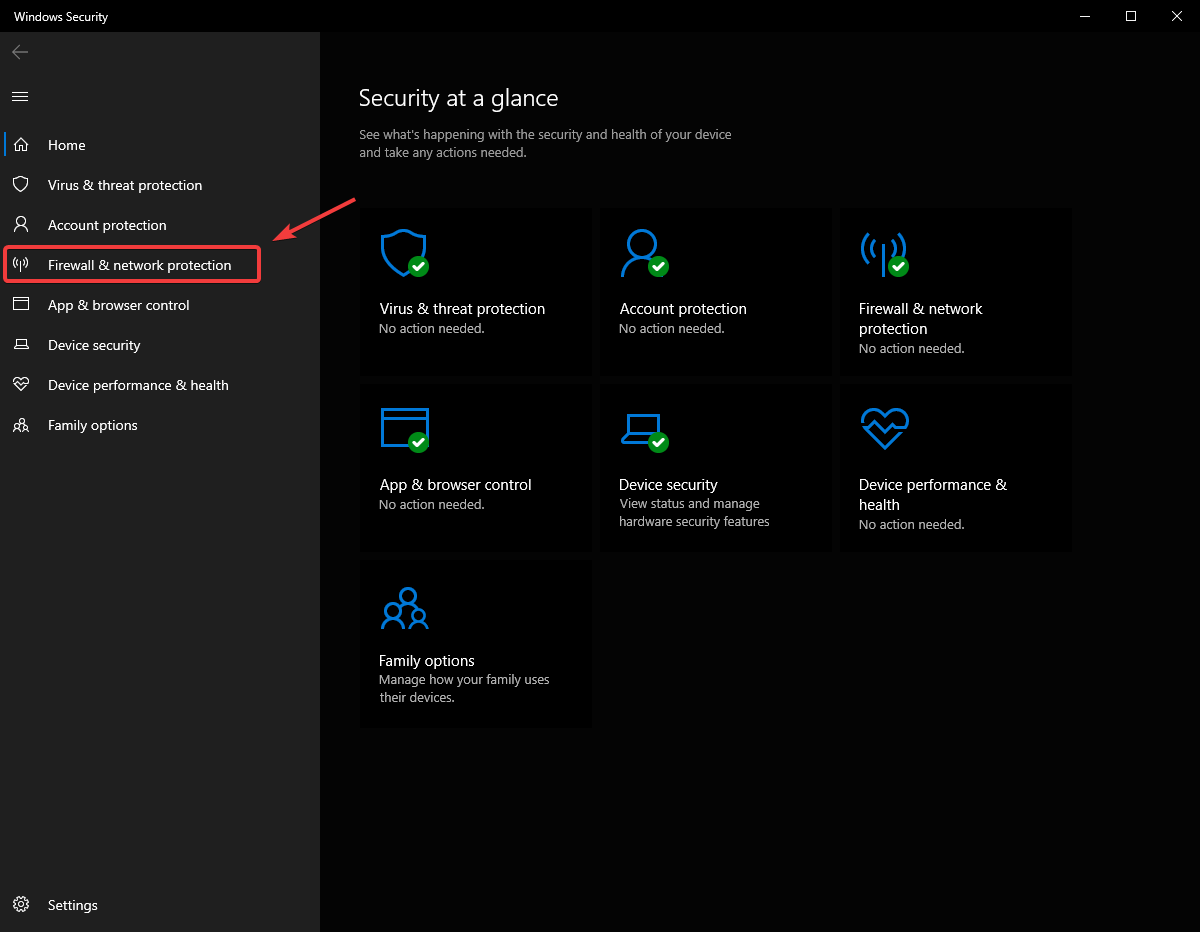
In the left pane, select Firewall and network protection
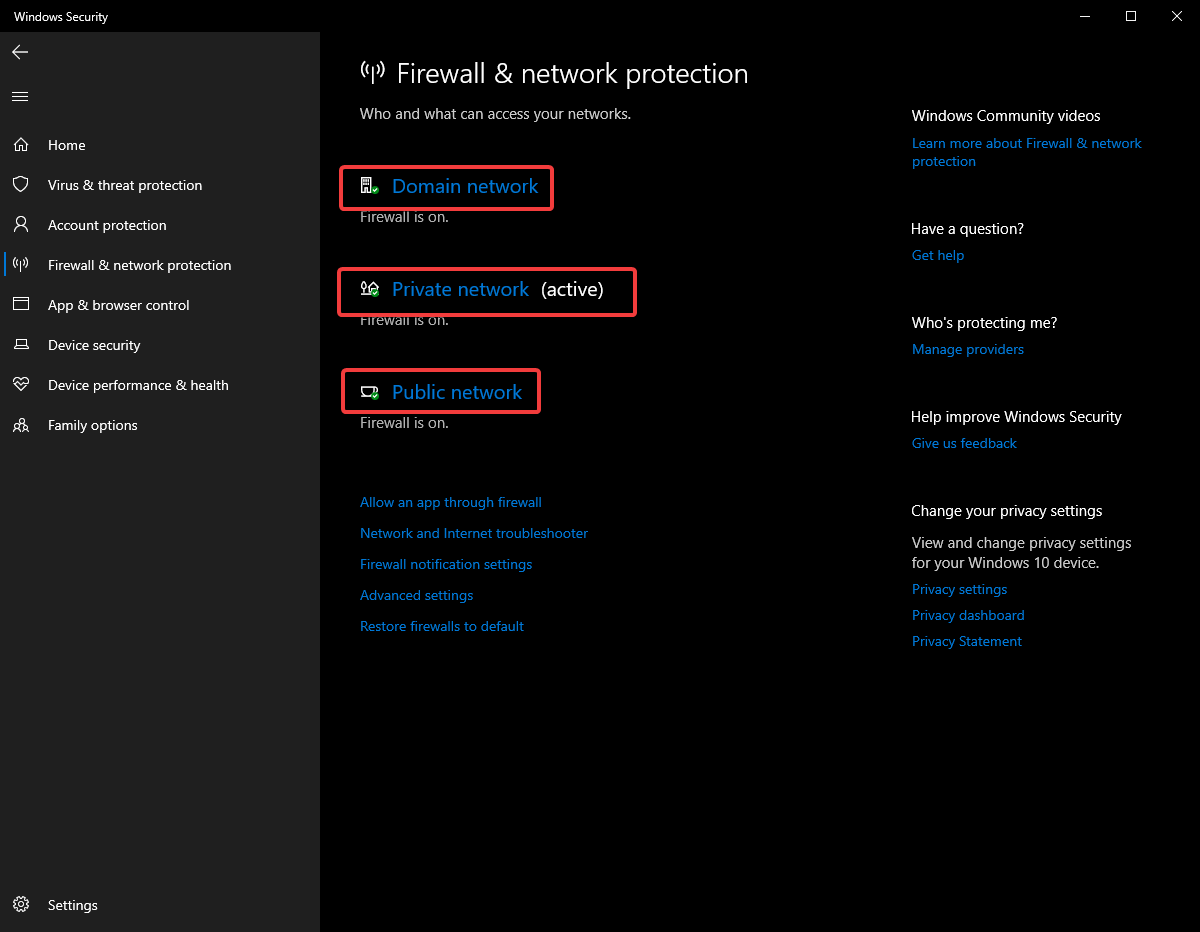
Click on each of the highlighted options
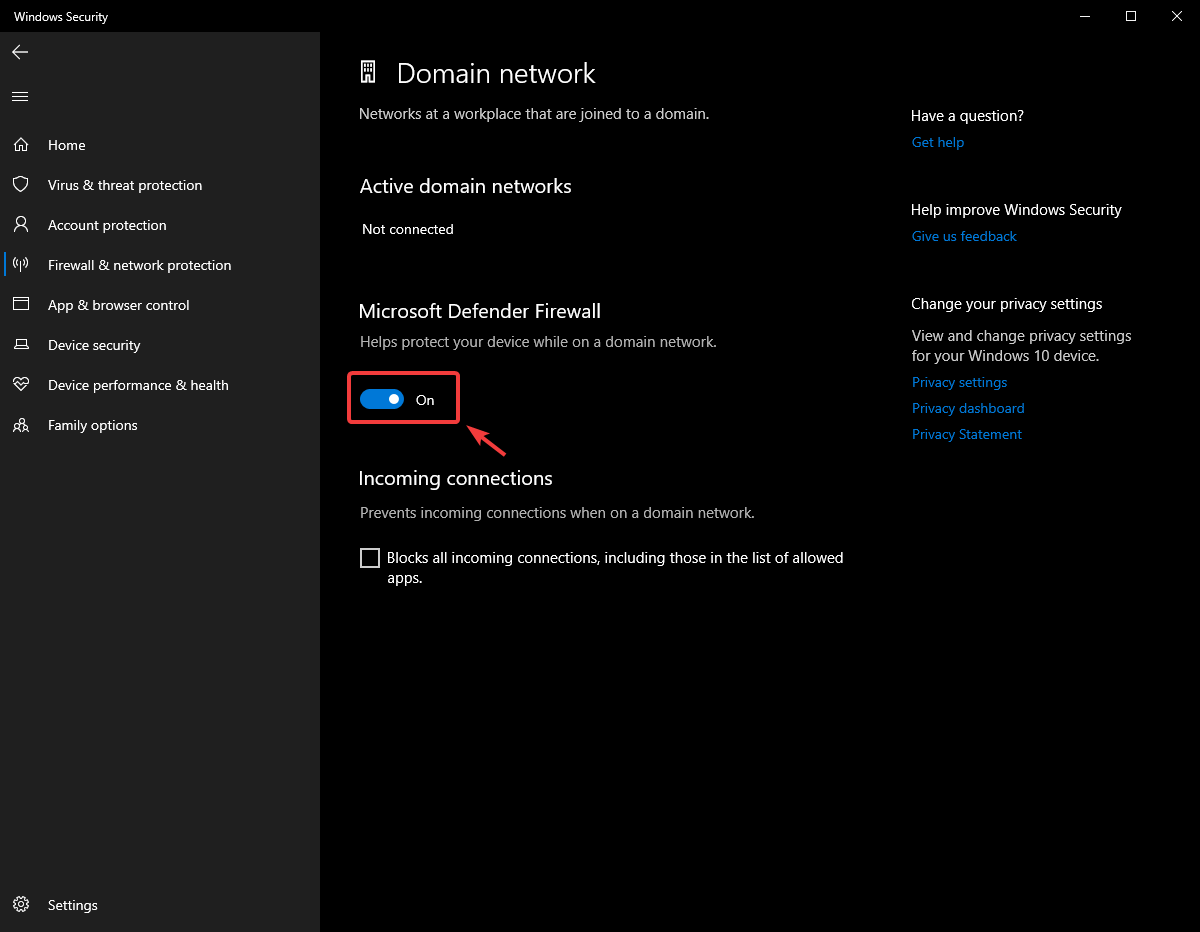
Then click on the On toggle to turn it off.
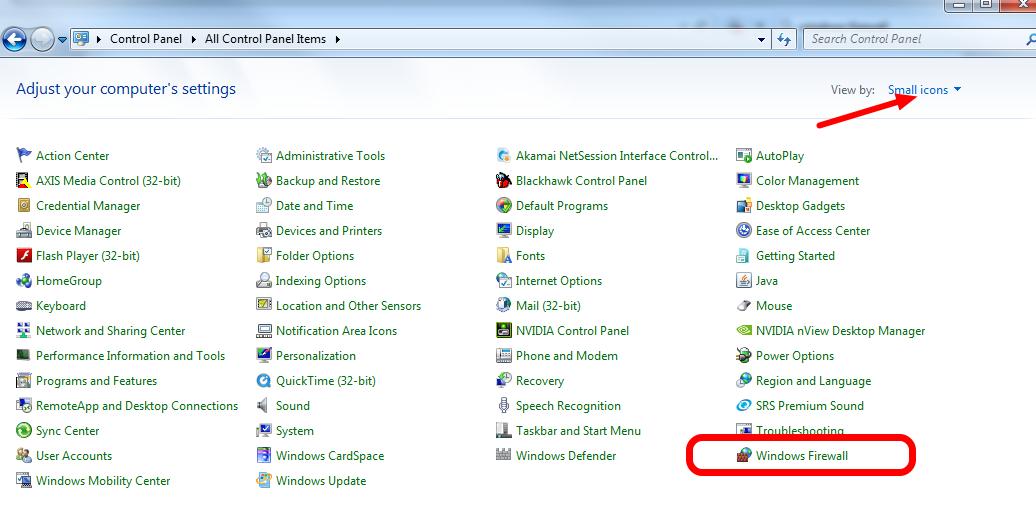
Click Start -> Control Panel to open the Control Panel. Click the dropdown next to View by: and select Small icons then click Windows Defender Firewall.
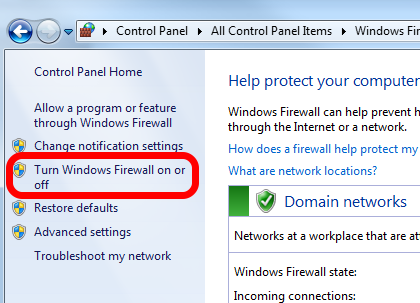
In the left pane, click Turn Windows Defender Firewall on or off, and click yes. Enter your Administrator password if a dialog appears.
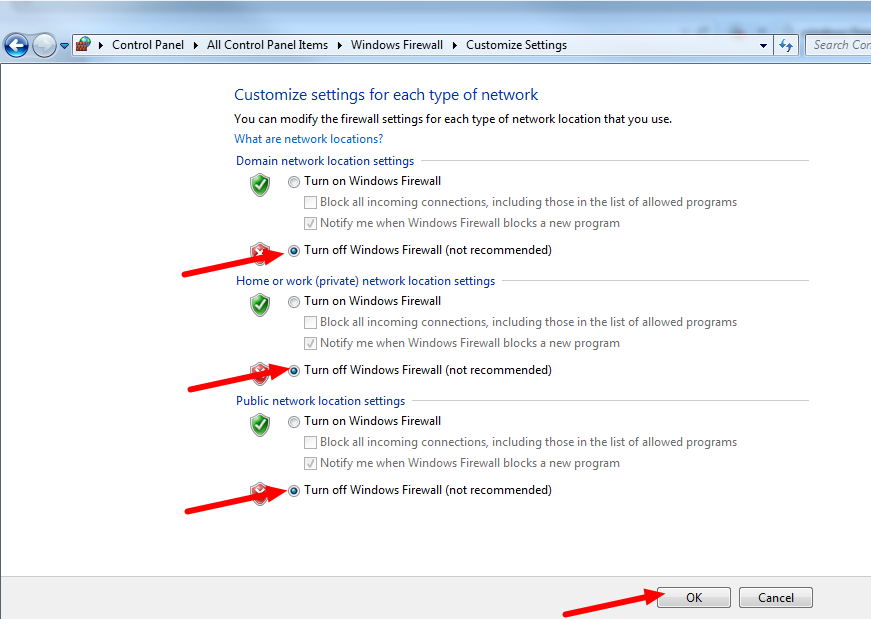
For each category, select the radio button to Turn off Windows Defender Firewall. Then click OK.
Whitelisting Apps
Alternatively, you can add exceptions to the Firewall for any FRC programs you are having issues with.
Click Start -> Settings
Click Update & Security
In the left pane, select Open Windows Security
In the left pane, select Firewall and network protection
At the bottom of the window, select Allow an app through firewall
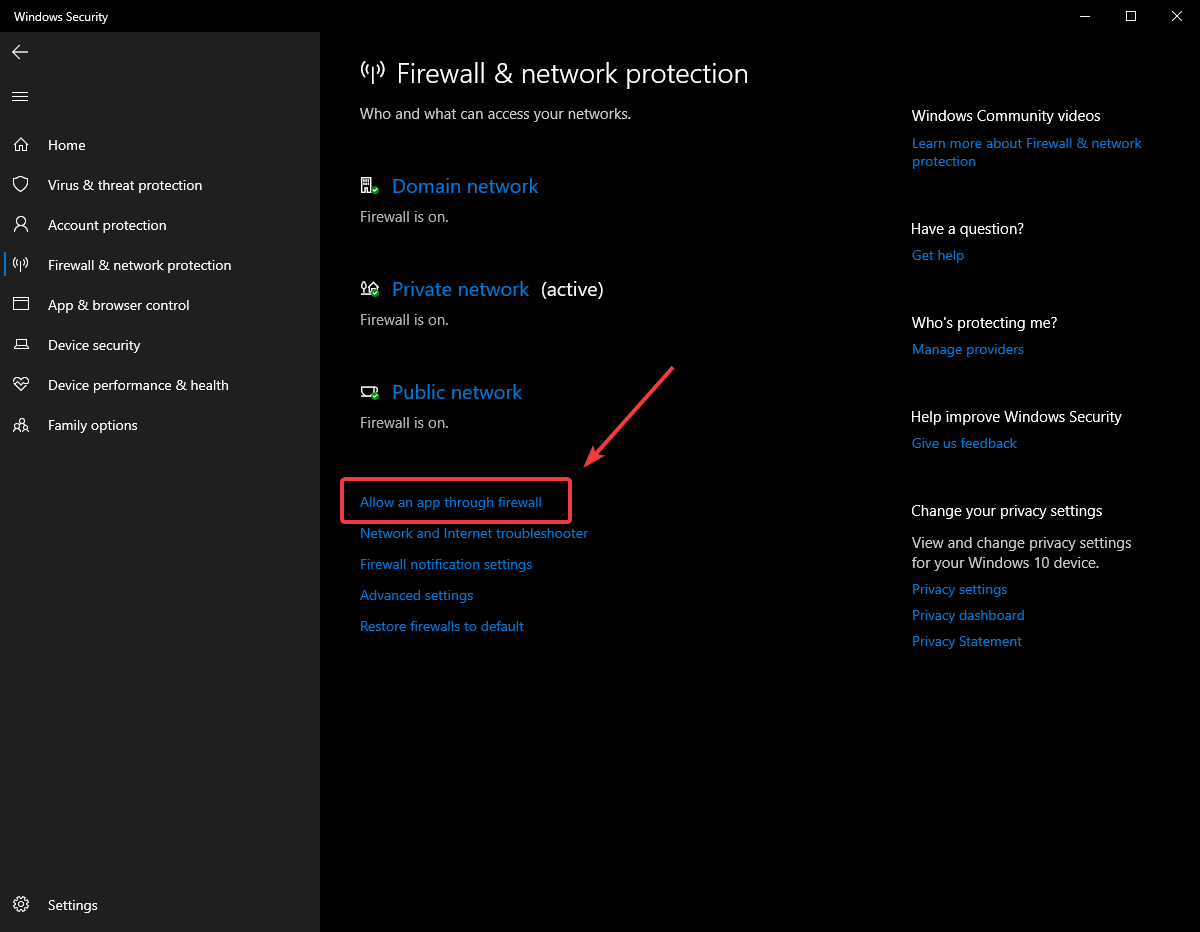
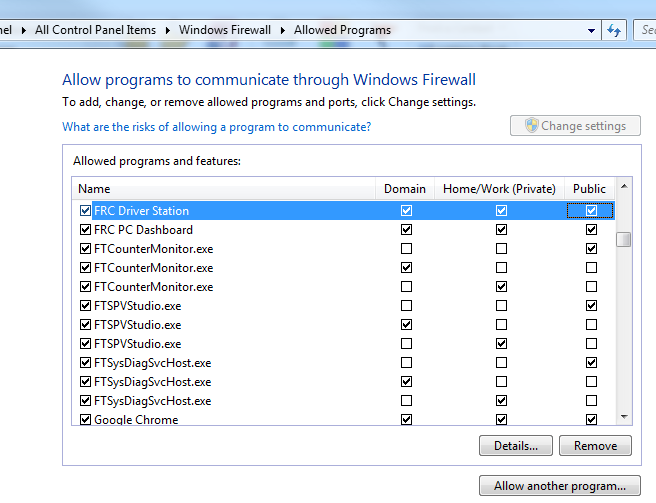
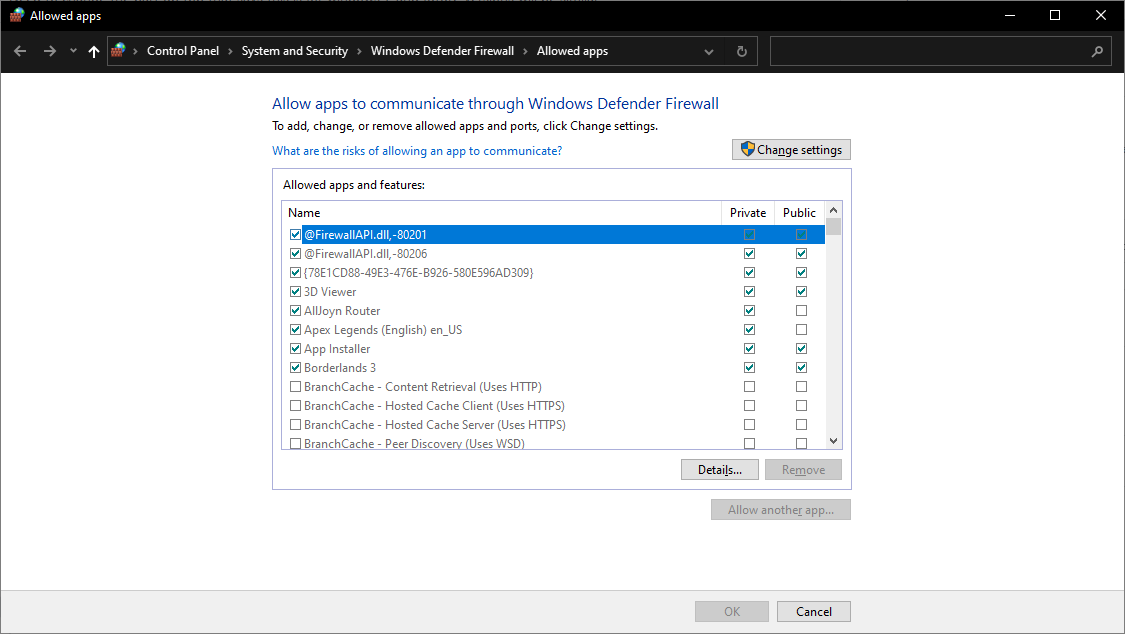
For each FRC program you are having an issue with, make sure that it appears in the list and that it has a check in each of the 3 columns. If you need to change a setting, you made need to click the Change settings button in the top right before changing the settings. If the program is not in the list at all, click the Allow another program… button and browse to the location of the program to add it.
Click Start -> Control Panel to open the Control Panel. Click the dropdown next to View by: and select Small icons then click Windows Defender Firewall.
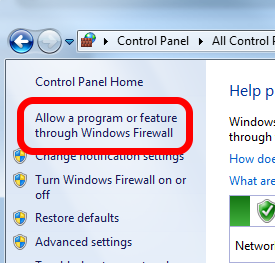
In the left pane, click Allow a program or feature through Windows Defender Firewall
For each FRC program you are having an issue with, make sure that it appears in the list and that it has a check in each of the 3 columns. If you need to change a setting, you made need to click the Change settings button in the top right before changing the settings. If the program is not in the list at all, click the Allow another program… button and browse to the location of the program to add it.