Manually Setting the Driver Station to Start Custom Dashboard
Note
If WPILib is not installed to the default location (such as when files are copied to a PC manually), the dashboard of choice may not launch properly. To have the DS start a custom dashboard when it starts up, you have to manually modify the settings for the default dashboard.
Warning
This is not needed for most installations, try using the appropriate Dashboard Type setting for your language first.
Set Driver Station to Default
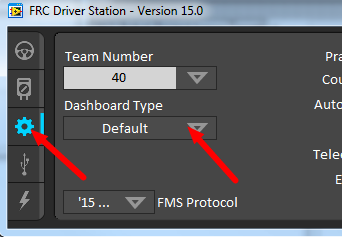
Open the Driver Station software, click on the Setup tab and set the Dashboard setting to Default. Then close the Driver Station!
Locate Dashboard JAR file
Find the location of the dashboard jar file.
Open DS Data Storage file
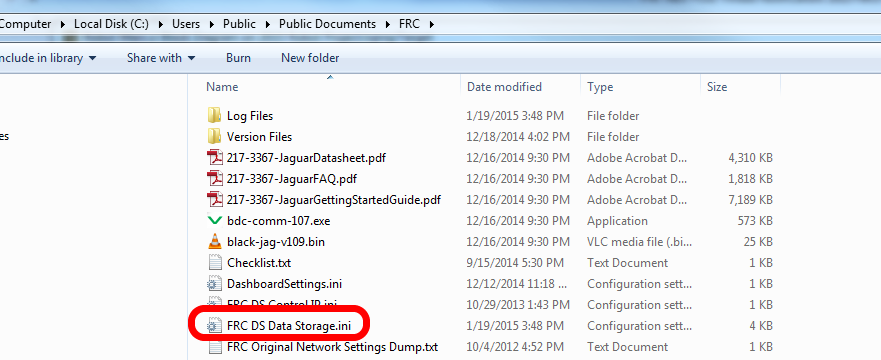
Browse to C:\Users\Public\Documents\FRC and double click on FRC DS Data Storage to open it.
DashboardCmdLine
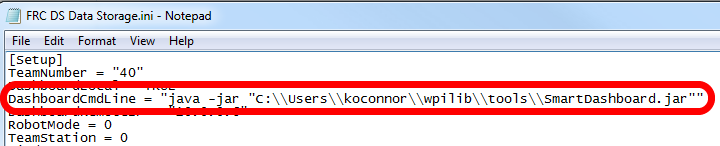
Locate the line beginning with DashboardCmdLine.
Replace the string after = with java -jar "C:\\PATH\\TO\\DASHBOARD.jar" where the path specified is the path to the dashboard jar file. Save the FRC DS Data Storage file.
Tip
If the dashboard jar file was located at C:\Users\USERNAME\frc\dashboard.jar, one should replace the string after = with java -jar "C:\\Users\\USERNAME\\frc\\dashboard.jar"
Launch Driver Station
The Driver Station should now launch the dashboard each time it is opened.